Quick Answer
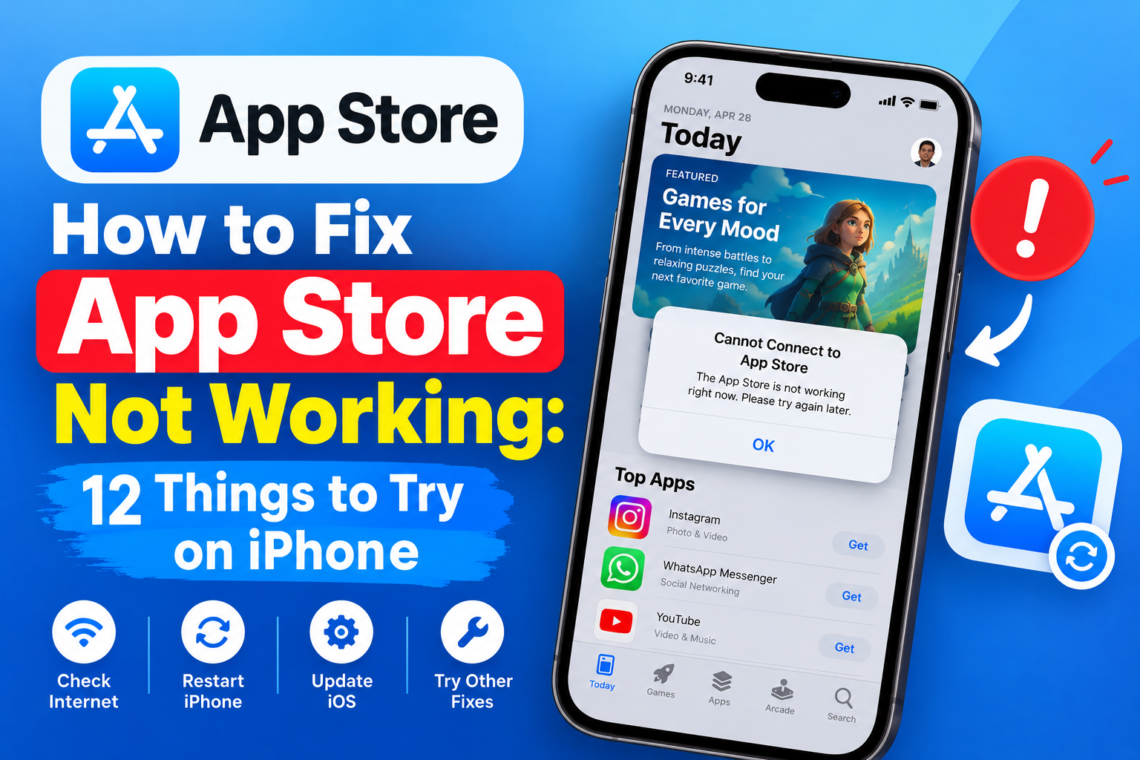
If the App Store is not working on your iPhone, first check Apple’s System Status page and make sure your internet connection is working. Then restart your iPhone and try downloading the app again.
If the App Store won’t open, keeps loading, or apps are stuck downloading, other possible causes include an Apple Account or payment issue, low storage, Screen Time restrictions, outdated software, VPN settings or a network problem.
Try these 12 fixes:
- Check for an Apple service outage
- Check your internet connection
- Restart your iPhone
- Check your Apple Account and payment information
- Check your date and time
- Update iOS
- Check your iPhone storage
- Check Screen Time restrictions
- Restart the App Store
- Prioritize a stuck download
- Check VPN and network settings
- Reset network settings or contact Apple Support
You do not necessarily need to try every step. If the problem is fixed, you can stop there.
Why Is My App Store Not Working?
The App Store not working problem can have several causes.
Your iPhone may have a weak internet connection. Apple may also be experiencing a temporary service outage. Other problems can involve your Apple Account, payment method, available storage, software version or device restrictions.
The exact symptom can also give you a clue.
You might see that:
- The App Store won’t open.
- The App Store is stuck loading.
- The App Store cannot connect.
- Apps won’t download.
- An app download is stuck.
- App updates won’t start.
- You see a billing or verification message.
- The App Store icon is missing.
Start with the checks below before changing advanced settings.
1. Check If the App Store Is Down
Before changing anything on your iPhone, check whether the problem is on Apple’s side.
Apple recommends checking its System Status page when you cannot connect to the App Store or other Apple services. The page shows whether specific services are experiencing an outage or other problems.
If the App Store is showing an outage, there may be nothing you need to change on your iPhone.
Wait for Apple to resolve the issue and try again later.
Best for: App Store not loading, connection errors and sudden outages.
2. Check Your Internet Connection
The App Store needs an internet connection to load content and download apps.
Open Safari and visit a website.
If websites also fail to load, your internet connection may be the problem rather than the App Store.
Try:
- Turning Wi-Fi off and on.
- Switching between Wi-Fi and mobile data.
- Connecting to another Wi-Fi network.
- Restarting your Wi-Fi router.
- Moving closer to your router if the signal is weak.
Apple recommends testing your internet connection and trying another network when you cannot connect to the App Store.
What if Safari works but the App Store doesn’t?
Your internet connection may not be the main problem.
Continue with the next fixes.
3. Restart Your iPhone
A simple restart is worth trying before changing more settings.
Restarting your iPhone can help clear temporary software issues that may affect the App Store or other apps.
The exact steps depend on your iPhone model, but on most recent iPhones:
- Press and hold the side button and either volume button.
- Wait for the power-off slider to appear.
- Drag the slider to turn off the iPhone.
- Wait a few seconds.
- Turn the iPhone back on using the side button.
Apple recommends restarting your iPhone if apps cannot be downloaded or updated.
4. Check Your Apple Account and Payment Information
If the App Store opens but an app won’t download, check your Apple Account and payment information.
Apple says you might need a valid payment method on file even if the app you want to download is free. You may also see messages such as “billing problem with previous purchase” or “verification required.”
To check your payment information:
Settings > [your name] > Payment & Shipping
Make sure your payment details are current.
If a payment method has been declined, Apple recommends adding another payment method and removing or updating the old one.
You should also make sure you are signed in to the correct Apple Account.
Tip: You do not need to sign out of your Apple Account as an early troubleshooting step. Check your account and payment information first.
5. Check the Date and Time
Incorrect date or time settings can sometimes interfere with connections to online services.
Go to:
Settings > General > Date & Time
Make sure Set Automatically is turned on.
Also check that your iPhone is using the correct time zone.
Apple includes checking date and time among its troubleshooting steps for connection problems with Apple services.
6. Update Your iPhone
An outdated iOS version can cause compatibility or software problems.
To check for an update:
Settings > General > Software Update
If an update is available, follow the instructions to install it.
Apple notes that an iPhone needs an internet connection and enough available storage to install an iOS update.
If your iPhone does not have enough free space, you may need to remove or offload some content first.
7. Check Your iPhone Storage
Low storage can become a problem when downloading or updating apps.
To check your available space:
Settings > General > iPhone Storage
You’ll see how much storage is being used and which apps or files are taking up the most space.
If your iPhone is nearly full, consider:
- Offloading unused apps.
- Removing apps you no longer use.
- Deleting large videos.
- Removing unnecessary downloads.
- Moving photos and videos to another storage location.
Apple also recommends checking available storage when software updates cannot be installed.
If your App Store download is stuck, freeing up storage is one of the checks worth making.
8. Check Screen Time Restrictions
If the App Store is missing or you cannot install apps, Screen Time restrictions may be responsible.
Apple says Content & Privacy Restrictions can prevent the App Store from appearing or stop users from installing apps.
Go to:
Settings > Screen Time > Content & Privacy Restrictions
Then check the settings under iTunes & App Store Purchases.
Make sure installing apps is allowed.
This is especially useful if the iPhone is managed by a parent or another family member.
9. Close and Reopen the App Store
If the App Store won’t open properly or appears frozen, close it and reopen it.
On an iPhone with Face ID:
- Swipe up from the bottom of the screen.
- Pause in the middle of the screen.
- Find the App Store.
- Swipe up on the App Store preview.
- Open the App Store again.
On an iPhone with a Home button, double-click the Home button and swipe up on the App Store preview.
Apple recommends closing and reopening an app when it stops responding or does not work as expected.
10. Prioritize a Stuck App Download
If the App Store itself is working but one app is stuck downloading, you may not need to reset anything.
Find the app on your Home Screen.
Touch and hold its icon.
If the option appears, select Prioritize Download.
Apple specifically recommends this option when an app download is not progressing normally.
You can also check whether other apps are downloading at the same time.
If only one particular app is affected, the problem may be related to that app rather than the entire App Store.
11. Check Your VPN or Network
A VPN or third-party security tool can sometimes interfere with connections.
If you use a VPN, turn it off temporarily and try the App Store again.
You can also switch from Wi-Fi to mobile data.
This is especially useful if the App Store works on one network but not another.
Apple recommends checking VPN and third-party security software when connection problems affect Apple services.
If you are using a school, office or public Wi-Fi network, its restrictions may also affect access to some services.
12. Reset Network Settings
If the App Store is still not working after the simpler fixes, resetting network settings is a more advanced option.
On your iPhone, go to:
Settings > Screen Time > Content & Privacy Restrictions
Tap iTunes & App Store Purchases, then make sure Installing Apps is allowed.
This removes all network settings, including saved Wi-Fi networks and passwords, cellular settings, VPN settings and APN settings.
You will need to reconnect to your Wi-Fi networks afterward.
Because this step changes your network configuration, it is better to try the simpler connection fixes first.
What If the App Store Won’t Open?
If the App Store won’t open at all, start with these checks:
- Check Apple’s System Status page.
- Test your internet connection.
- Restart your iPhone.
- Close and reopen the App Store.
- Update iOS.
- Check Screen Time restrictions.
If you cannot find the App Store icon, it may be hidden by Content & Privacy Restrictions.
Apple says you can check iTunes & App Store Purchases in Screen Time and set Installing Apps to Allow. You can also use Spotlight Search to look for the App Store.
What If the App Store Is Stuck Loading?
If the App Store is stuck on loading, start with your internet connection.
Open Safari and try another website.
If websites are also not loading, switch networks or restart your router.
If your internet works normally:
- Check Apple’s System Status.
- Restart your iPhone.
- Close and reopen the App Store.
- Turn off your VPN temporarily.
- Check for an iOS update.
Apple recommends checking the system status and internet connection when an Apple service cannot connect or content stops loading.
What If Apps Won’t Download?
If the App Store is not downloading apps, first identify whether the problem affects every app or only one.
If no apps will download
Check:
- Internet connection
- Apple System Status
- Apple Account
- Payment method
- Available storage
- iOS version
- Screen Time restrictions
Apple notes that you may need a valid payment method even when downloading a free app.
If only one app won’t download
Check whether:
- The app is compatible with your iPhone.
- The app is available in your region.
- The download is stuck.
- Your Apple Account has a payment or verification issue.
If the app appears on your Home Screen with a download indicator, try Prioritize Download.
What If App Store Updates Are Not Working?
If the App Store update is not working, the same troubleshooting steps can help.
Start by checking your internet connection and available storage.
Then restart your iPhone and check for an iOS update.
Also check your payment information if you see a billing or verification message. Apple recommends checking payment information and restarting the device when apps cannot be downloaded or updated.
If only one app refuses to update, check whether the problem is specific to that app.
App Store Problems: Quick Fix Guide
| Problem | What to try first |
| App Store won’t open | Check System Status and restart iPhone |
| App Store stuck loading | Check internet and switch networks |
| Apps won’t download | Check payment information and storage |
| One app download is stuck | Use Prioritize Download |
| App updates won’t work | Check storage, internet and payment details |
| App Store cannot connect | Check internet, VPN and System Status |
| App Store icon is missing | Check Screen Time restrictions |
| Problem continues on every network | Consider resetting network settings |
Frequently Asked Questions
Why is my App Store not working?
The problem can be caused by an Apple service outage, internet connection issue, payment or Apple Account problem, low storage, software issue or Screen Time restriction. Start by checking Apple’s System Status and your internet connection.
Why won’t the App Store download apps?
Check your internet connection, available storage and Apple Account payment information. Apple says you may need a valid payment method on file even when the app you want is free.
How do I fix App Store not working on iPhone?
Start by checking Apple’s System Status and your internet connection. Then restart your iPhone, check your Apple Account and payment information, update iOS and check available storage.
Why is my App Store stuck on loading?
A connection problem or temporary Apple service issue can prevent the App Store from loading. Check Apple’s System Status, test another network and restart your iPhone.
Why does App Store update not work?
App updates can fail because of an internet connection, low storage, payment or account issues, or a temporary service problem. Restart your iPhone and check these areas first.
Does resetting network settings fix App Store problems?
It can help when the problem is related to your iPhone’s network configuration. However, it also removes saved Wi-Fi networks and passwords, so it should be treated as a later troubleshooting step.
How do I know if the App Store is down?
Check Apple’s System Status page. It shows the current status of Apple’s online services and can indicate whether the App Store is experiencing an outage.
Final Takeaway
When the App Store is not working, start with the simplest checks rather than changing several settings at once.
First, check Apple’s System Status and your internet connection. Then restart your iPhone and check your Apple Account, payment information and available storage.
If you’re dealing with a stuck download, try Prioritize Download. If the App Store is missing, check Screen Time restrictions. For persistent network-related problems, you can consider resetting network settings.
If none of these steps solves the problem, Apple recommends contacting Apple Support for further help.